LightKeeper PRO / Mail and antispam
Mail and antispamStops spam at the door, never loses mail
Most unwanted mail is rejected before it is even accepted, so it goes back to the sender and nobody has to ask where it went. Whatever gets through is scored by the antispam and antivirus. Meanwhile, your customers' mailboxes are guarded against password attacks.
No email ever gets lost
An invoice that ends up in deleted spam costs a customer more than ten unwanted messages in the mailbox. That's why three rules apply.
Spam is only tagged
A message the antispam classifies as spam is tagged and delivered. It is never deleted or silently discarded.
Rejection only before acceptance
If mail shouldn't get through, it is rejected during the connection. The sender learns about it right away from their own server.
An error means a deferral
If a check or the database fails, the message is temporarily deferred and delivered later. It is not returned to the sender.
Today on the whole mail server, on a single page
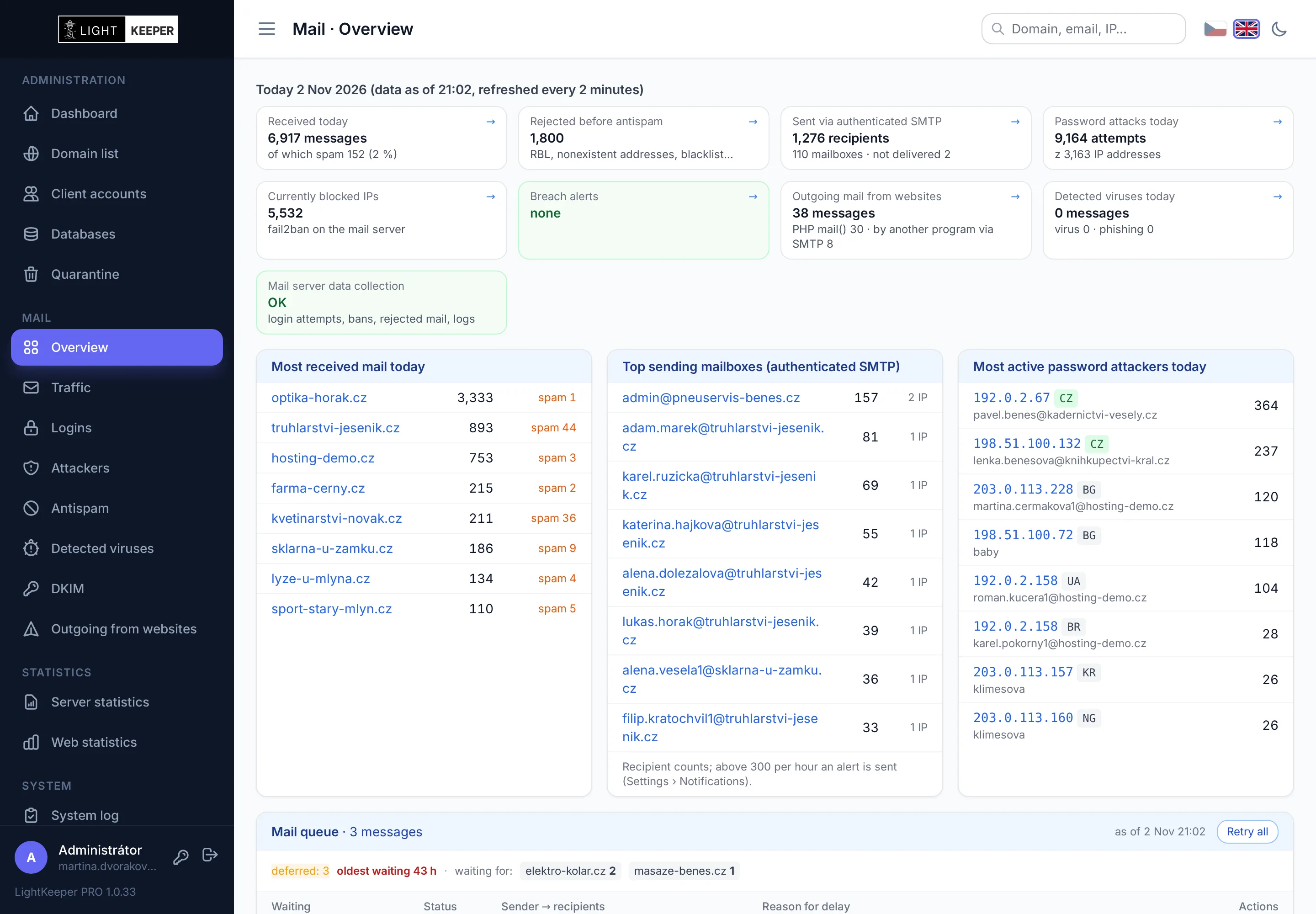
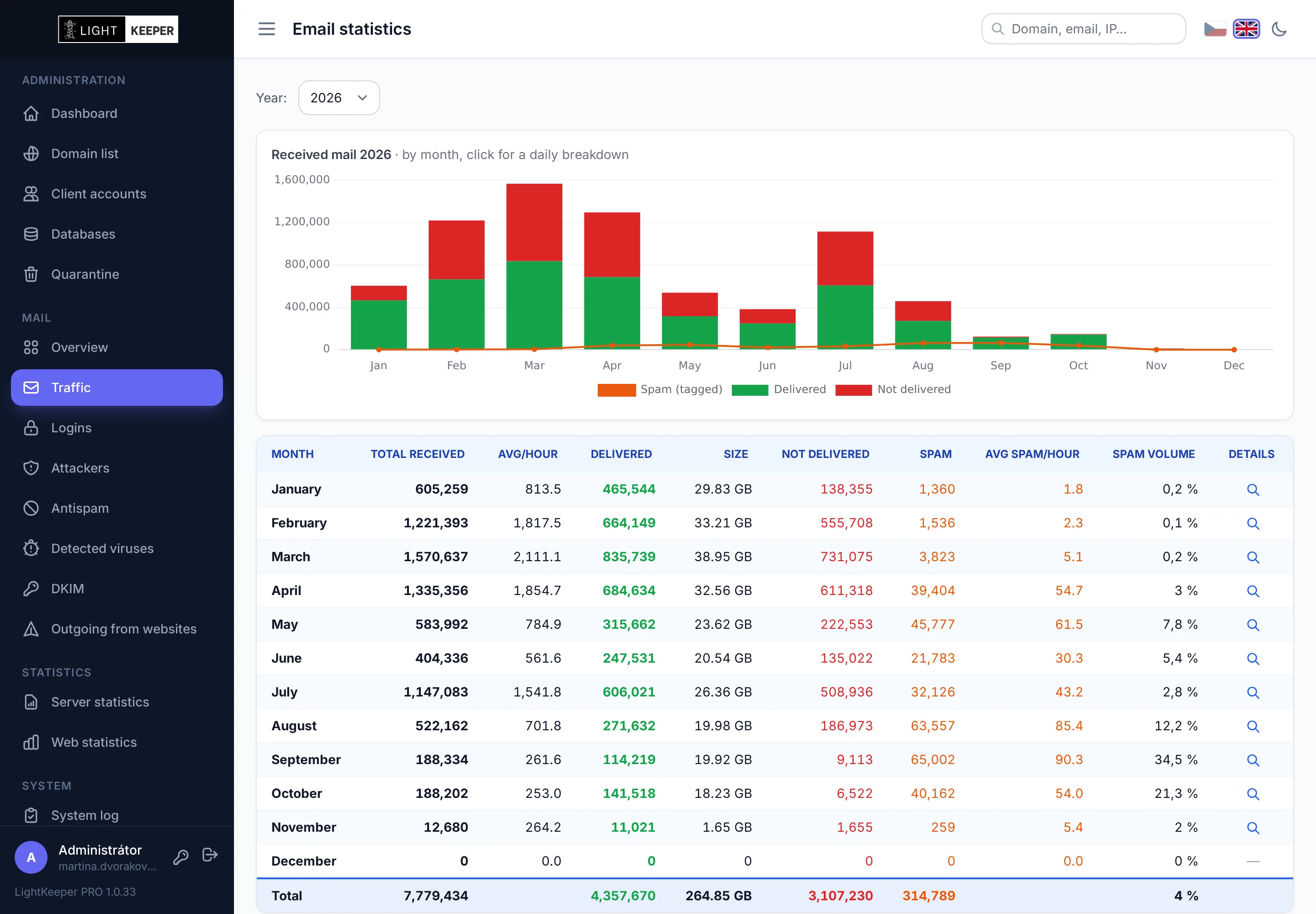
How much mail arrived today and how much of it was spam, what was rejected before acceptance, how many messages were sent via authenticated SMTP and who is trying passwords. The data refreshes every two minutes.
- Most received mail by domain, including spam.
- Top sending mailboxes: a mailbox above the alert threshold is highlighted.
- Most active password attackers with country and the last username tried.
- The whole Mail section in one place: traffic, logins, attackers, antispam and outgoing mail from websites, with the same time periods across all reports.
A view of everything that never made it onto the server
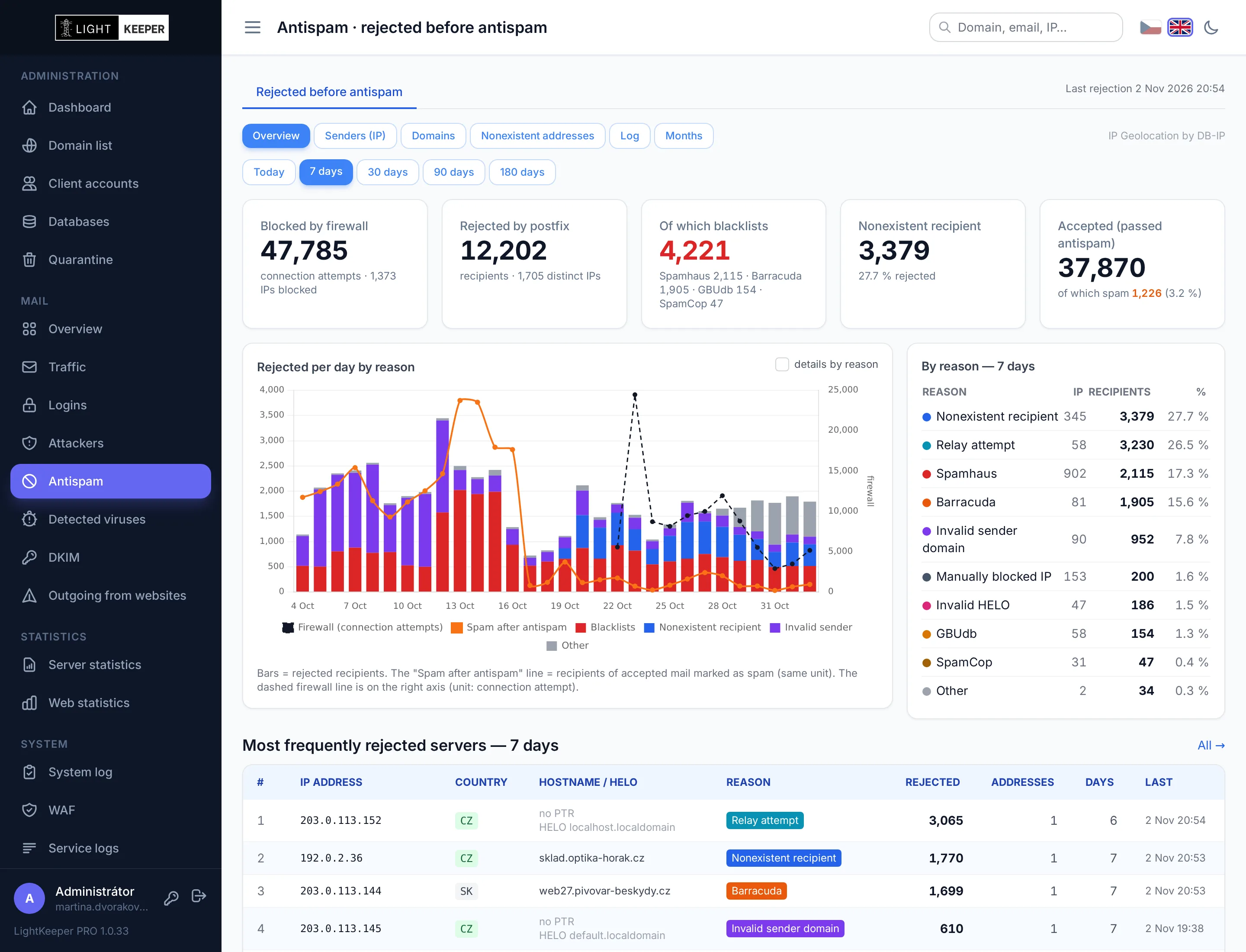
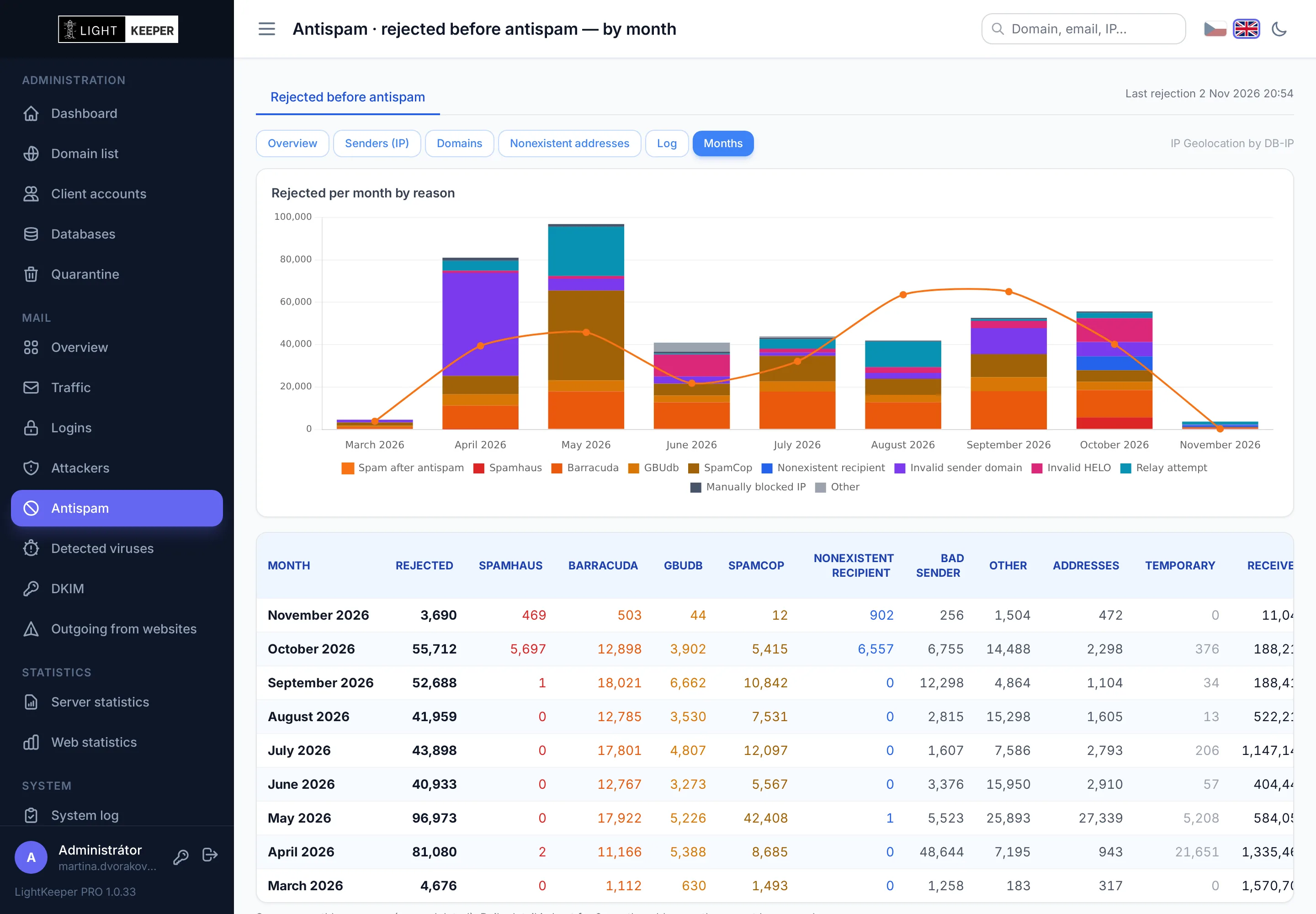
Connections from blacklisted addresses, mail for nonexistent recipients, forged HELO or an invalid sender. For every rejection you know why, where it came from and who the message was meant for.
- Blacklists Spamhaus, Barracuda, GBUdb and SpamCop, manual IP address bans and a firewall for repeat senders.
- Views by sending server, customer domain, nonexistent address and month, plus a detailed log with filters.
- IP address details with reasons, HELO, senders, recipients and the exact rejection text.
Whatever gets through is scored by rspamd and ClamAV
rspamd with learning
The Bayesian filter and fuzzy hashes learn from your server's own mail. Custom rules complement the standard SPF, DKIM and DMARC checks.
Per-domain settings
For each domain you choose whether spam is only tagged or moved to the Junk folder, and add sender whitelists and blacklists. Customers can set this up themselves in the client portal.
ClamAV antivirus
ClamAV scans the entire message, including attachments and archives, with extended signatures for phishing and malicious documents. A message with a virus gets [VIRUS] added to its subject and is delivered; nothing is deleted.
Every detected virus has its own record
LightKeeper PRO records every message in which the antivirus found a virus, malware or phishing. On the Detected viruses page you see what arrived, for whom, from whom and in which attachment. Every message is checked, even one the antispam has already classified as spam.
Overview of all detections
A daily chart by detection type, the most common viruses, targeted domains and sending IP addresses with a link to their profile. Periods from one day to a full year.
Details of every message
Subject, attachment and even a file hidden inside an archive, sender, recipients and how the message was tagged. Search by virus name, attachment, address or IP.
A virus from your own customer
When a customer sends a message containing a virus or phishing, you get an email and an alert on the overview. It usually means a compromised computer or website, or a stolen password.
Customers also see detections for their domain in the client portal, limited to their own mailboxes.
Knows when someone is trying your customers' passwords
Every failed login attempt via SMTP, IMAP or POP3 is counted against the mailbox, IP address and country. You see the most targeted mailboxes and the usernames attackers are trying.
- Breach alerts: when someone logs in after a series of failures, the password has most likely been guessed.
- Where the mailbox usually logs in from and which logins came from abroad or from an IP that attacked earlier.
- Reports by day, service and country, with details for every mailbox and IP address.

When a customer calls because their mail isn't arriving
Editing a mailbox starts with an overview of everything that happened with it over the last few days. Your technician can answer without digging through logs.
- Received and sent mail for 30 days, with links to individual messages.
- Logins and password attacks: where the mailbox logs in from, who is trying its password and any open alerts.
- Size, domain antispam settings and change history of the mailbox in one place.

Password attackers end up on the firewall
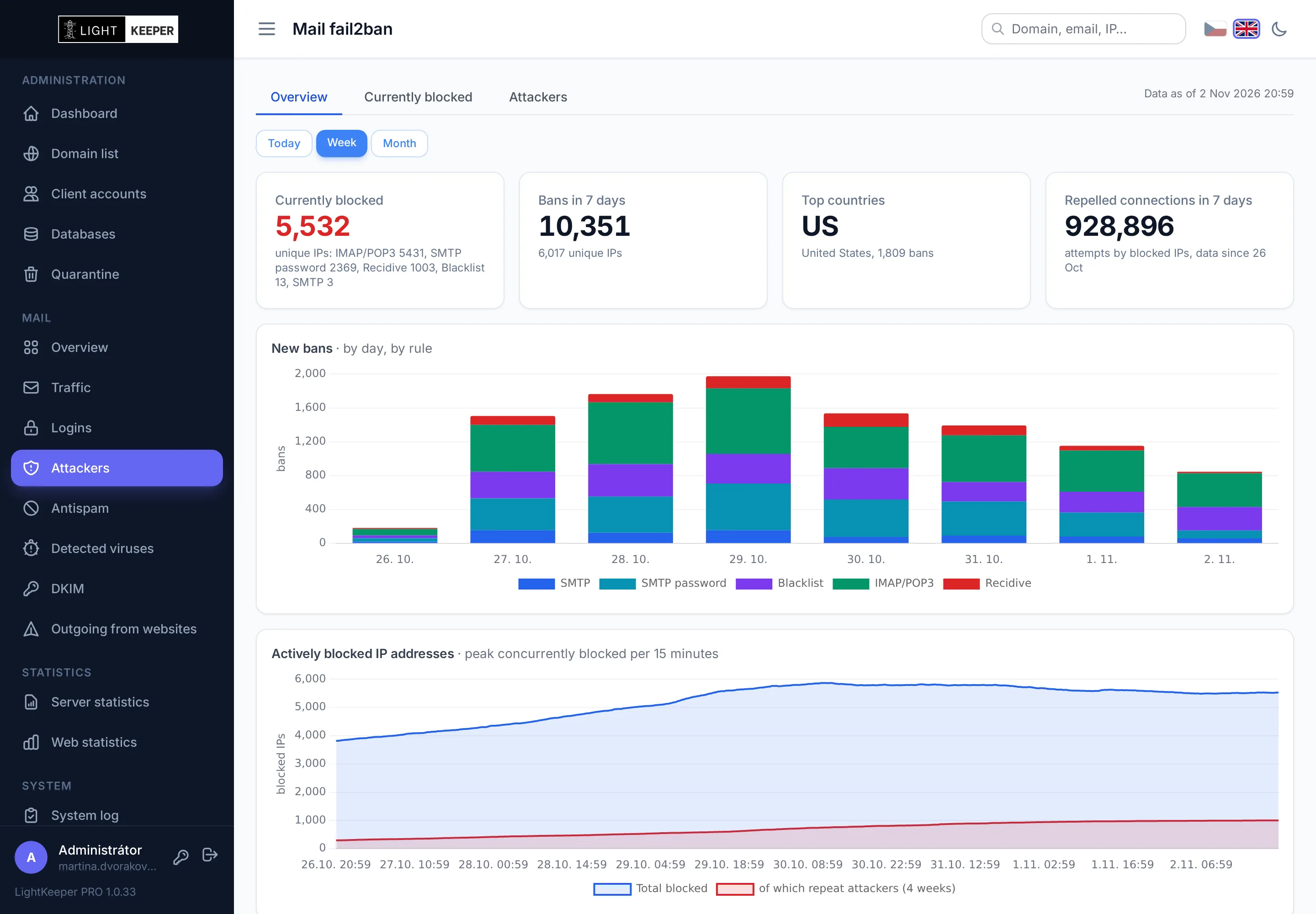
IP addresses that try passwords or send mail from a blacklist are blocked by fail2ban. The overview shows how many addresses are currently blocked and by which rule.
- Separate rules for SMTP, SMTP passwords, IMAP and POP3, blacklists and repeat attackers.
- One-click unblocking when a customer with a misconfigured phone ends up banned.
- How many connections the firewall turned away, so you can see how much load it saved the mail server.
You'll know before the blacklists do
A compromised website starts sending spam through PHP; a stolen mailbox password gets used to send spam via SMTP. LightKeeper PRO detects and reports both.
- Every
mail()call is logged along with the script that made it and the result of the handoff to the mail server. - Email alert when a website exceeds the configured number of messages per hour, with the scripts and a sample of the latest messages.
- Turn off sending from PHP for a specific website with a single switch.
- Compromised mailbox: when a mailbox sends to more recipients per hour via authenticated SMTP than the limit allows, you get an email with the IP addresses and recipients.
- Successful logins to mailboxes with a country overview and highlighting of IPs that attacked earlier.

Your customers' mail doesn't land in spam because of DNS
Gmail, Seznam and Microsoft now send mail without a signature and a correct SPF record to spam or reject it outright. LightKeeper PRO checks the DNS of every domain with mailboxes daily and shows where something needs to be added.
- One overview of all domains: whether mail is signed, SPF and DMARC status and the DKIM keys found, with a filter for domains with problems only.
- SPF is verified against the actual IP of your mail server. It detects a missing record as well as an SPF record that doesn't authorize your server.
- Keys of other services: finds DKIM records for Mailchimp, Microsoft 365, Google and other services the domain sends mail through.
- Colored dots in the domain list show SPF, DKIM and DMARC status without opening the details.

Turn on DKIM with one click, even customers can do it themselves
LightKeeper PRO creates the DKIM key in the domain details. A technician, or the customer in the client portal, just copies the prepared record into DNS. Signing starts once the DNS record matches.
- A ready-made DNS record with a copy button, including splitting a long key into strings for a BIND zone file.
- DNS check at the click of a button, otherwise daily. If the record disappears from DNS or doesn't match, you see it in the overview.
- Key rotation without downtime: the new key is used once it is in DNS; until then, the old one keeps signing.
- SPF, DMARC and all of the domain's DKIM records on one tab, with an explanation of what each status means.
